Laptops & PCs

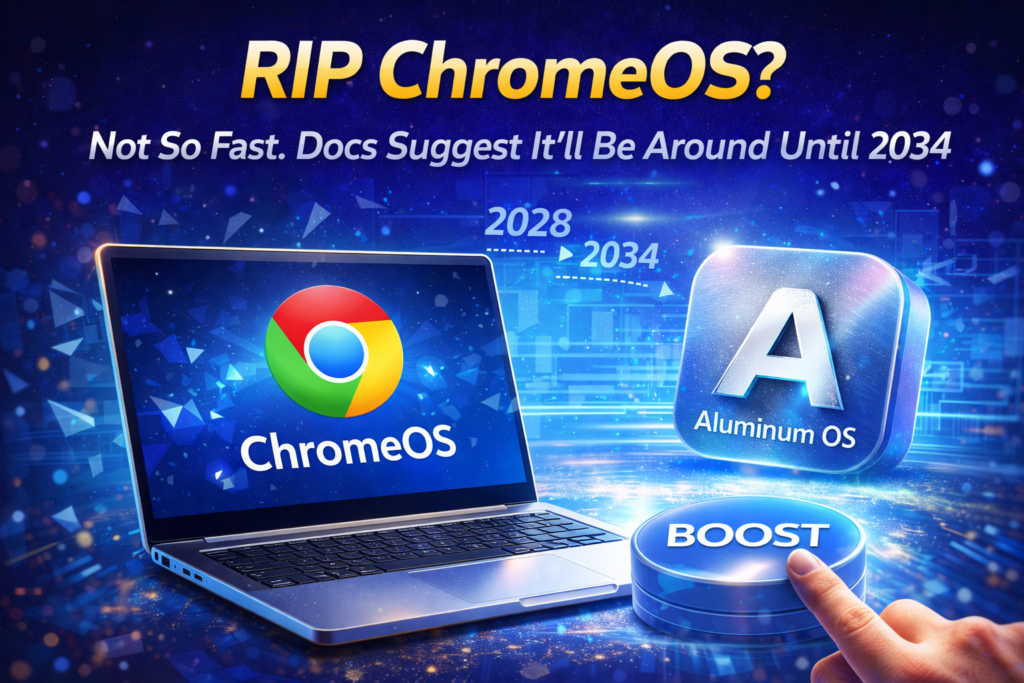
RIP ChromeOS? Here’s Why It Will Stay Until 2034
Future Tech, Laptops & PCs, News

RIP ChromeOS? Here’s Why It Will Stay Until 2034

Introduction to ChromeOS and Its Legacy ChromeOS has been a significant player in the laptop industry, especially in education. Launched in 2011, the OS provided a lightweight, secure platform for students and professionals. Over the years, it gained a loyal following, even though it never overtook Windows or macOS. Now, with Google planning Aluminum OS, the future of ChromeOS is a hot topic. Google’s Aluminum OS and the Timeline Google is currently developing Aluminum OS, a combined platform merging Android and ChromeOS. According to court documents, this new OS is expected to roll out fully by 2028. The transition will not immediately replace ChromeOS, as many older devices may not support Aluminum OS. Therefore, ChromeOS will continue receiving updates for existing devices. ChromeOS 10-Year Support Commitment One of the biggest reasons ChromeOS will remain is Google’s 10-year update commitment. All Chromebooks are guaranteed a decade of support from their launch date. For instance, devices released in 2024 will still receive updates until 2034. This ensures security and stability, which is particularly important in educational institutions and businesses. Security Implications for Chromebook Users Security is a critical factor for ChromeOS longevity. Without updates, devices risk vulnerabilities, as seen with Windows 10 after support ended. By continuing ChromeOS updates, Google protects users from malware and exploits. Students, educators, and professionals can safely rely on Chromebooks for years to come. ChromeOS in Education and Workspaces ChromeOS laptops have found their niche in classrooms and offices. Their lightweight design, long battery life, and easy-to-manage interface make them ideal for daily use. While Aluminum OS promises to expand functionality, ChromeOS’s simplicity ensures that existing users remain productive. The OS is particularly effective for cloud-based work environments. Compatibility Concerns with Aluminum OS Not all Chromebooks will be compatible with Aluminum OS. Older devices may lack hardware support, which means Google must maintain ChromeOS updates until 2034. This dual-system period ensures users are not forced to upgrade hardware prematurely. It also allows a smooth transition without compromising functionality or security. Market Position of ChromeOS Although ChromeOS is not as mainstream as Windows or macOS, it holds a steady market share. Its affordability and ease of use make it appealing to education systems worldwide. Even with Aluminum OS on the horizon, ChromeOS devices will continue serving students and professionals who need a reliable, low-maintenance computing experience. Court Documents Reveal ChromeOS Lifespan Recent court filings show Google is legally bound to maintain ChromeOS support until at least 2033. This means that even with Aluminum OS’s release in 2028, ChromeOS updates will continue for another six years. The timeline to fully phase out ChromeOS is now projected for 2034. Users can expect a seamless experience without sudden loss of service. Implications for Businesses and IT Departments Businesses relying on Chromebooks can plan for long-term support. IT departments benefit from predictable update schedules, reducing security risks. Organizations can implement new technologies gradually without worrying about unsupported devices. ChromeOS’s stability ensures minimal disruption in professional and educational settings. The Future of ChromeOS vs Aluminum OS Aluminum OS promises a unified experience across Android and Chromebook devices. However, ChromeOS will remain crucial for older devices and secure environments. The coexistence period will allow Google to refine Aluminum OS while still honoring its support commitments. This hybrid approach keeps users safe and productive. Conclusion ChromeOS is far from being discontinued. With 10-year update guarantees, security concerns, and hardware limitations for Aluminum OS, ChromeOS will remain in use until 2034. Users can confidently continue relying on their Chromebooks, knowing Google is committed to maintaining updates and support.

RIP ChromeOS? Here’s Why It Will Stay Until 2034 Read Post »
Microsoft PC Manager
How-To, How-To Guides, Laptops & PCs

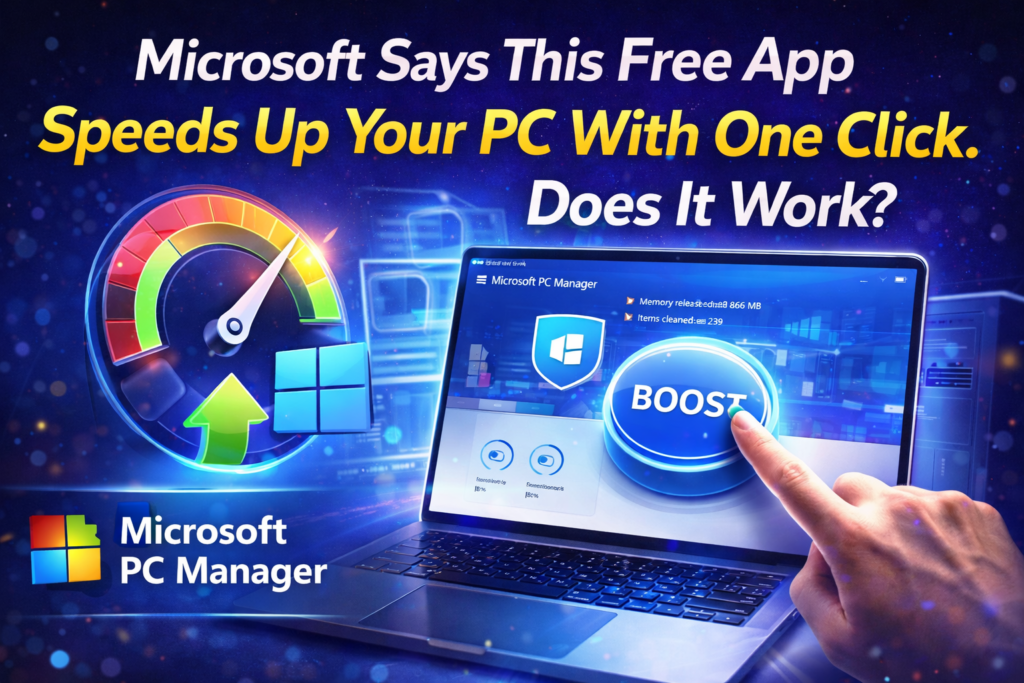
Microsoft PC Manager : Does This Free App Really Speed Up Your PC?

Introduction to Microsoft PC Manager Microsoft PC Manager has become popular among Windows users looking for a simple way to improve system performance. Many third-party tools promise faster computers, but most require paid subscriptions or show aggressive ads. Microsoft has now introduced its own free optimization app that claims to clean and boost PCs with one click. The big question is whether this tool actually delivers real results or is just another system cleaner with big marketing promises. What Is Microsoft PC Manager? Microsoft PC Manager is an official Windows utility designed to combine several built-in maintenance features into one interface. Instead of searching through multiple settings menus, users can manage storage, startup apps, and background processes from a single dashboard. The app works on both Windows 10 and Windows 11 devices without requiring advanced technical knowledge. This makes it attractive for beginners who want an easy method to maintain their computers. Installation and First Impressions Downloading Microsoft PC Manager from the Microsoft Store takes only a few seconds on a stable internet connection. After launching the app, a clean and simple welcome screen appears with options to enable automatic startup. The interface uses large buttons and clear labels that explain each function in plain language. Even users with little experience in PC maintenance can understand the layout without reading tutorials. One-Click Boost Feature The main attraction inside Microsoft PC Manager is the large Boost button placed at the top of the home screen. Pressing this button closes unnecessary background processes and removes temporary files from memory. This action is meant to free RAM and make the system feel more responsive during daily tasks. On older computers, the effect can be more noticeable than on high-end modern machines. Health Check System Another important section is the Health Check tool that scans the computer for common performance problems. It searches for leftover files, unused applications, and system settings that may slow down the PC. After the scan finishes, users receive a list of items that can be optimized with one click. The report is easy to read and explains each suggestion clearly. Storage Cleaning Options Microsoft PC Manager includes advanced storage management similar to Windows Storage Sense but with more control. Users can delete cache files, DirectX shaders, log data, and recycle bin contents from one page. The tool also identifies large files that may be forgotten in download folders. This helps free valuable disk space without manually browsing through drives. Startup and Process Control Too many startup applications are one of the biggest reasons for slow boot times. Microsoft PC Manager allows users to disable unwanted startup programs with simple toggle switches. It also shows running processes with an option to end tasks quickly. This feature works like Task Manager but in a friendlier design. Deep Cleanup Function The Deep Cleanup module goes further than basic cleaning by scanning application caches and residual data. Programs like browsers and chat tools often store hundreds of megabytes of temporary files. Removing these leftovers can recover several gigabytes of storage space. The process is safe because the app targets only non-essential data. Toolbox and Mini Toolbar Microsoft PC Manager offers a small floating toolbar that displays CPU and network usage in real time. Users can add shortcuts to calculator, notepad, captions, and other system utilities. This helps access useful tools without opening multiple windows. The toolbar can be hidden anytime if it feels distracting. Security and Privacy Considerations Some users worry about giving system access to optimization software. Microsoft PC Manager runs locally and does not upload personal files to cloud servers. The app follows the same privacy standards as Windows itself. It only uses official Windows APIs to perform cleaning and maintenance. Performance Test Results Real-world tests show that Microsoft PC Manager can slightly improve benchmark scores on mid-range PCs. Memory usage usually drops after pressing the Boost button. Systems with limited RAM benefit more than powerful gaming computers. The improvement is not magical but still helpful for everyday multitasking. Comparison With Third-Party Tools Unlike CCleaner or Iolo System Mechanic, Microsoft PC Manager is completely free and ad-free. It avoids risky registry cleaning that can damage Windows installations. Paid tools often include unnecessary features that average users never touch. The Microsoft solution focuses only on safe and practical optimizations. Who Should Use This App? Microsoft PC Manager is ideal for students, office workers, and home users who want simple maintenance. Gamers with high-end rigs may notice only small gains from the tool. Older laptops with 8GB RAM or less can feel noticeably faster after cleaning. The app suits people who dislike complex technical settings. Limitations to Consider The tool does not replace professional troubleshooting for hardware problems. It cannot fix failing hard drives or outdated drivers automatically. Advanced users may prefer the detailed control of Task Manager and Windows settings. The app is mainly designed for quick everyday optimization. Final Verdict on Microsoft PC Manager After thorough testing, Microsoft PC Manager proves to be a reliable and safe maintenance utility. It successfully organizes scattered Windows features into one convenient location. The performance boost is modest but real, especially on cluttered systems. For a free official app, it delivers more value than expected. Conclusion The focus keyword Microsoft PC Manager represents a new direction for Windows maintenance tools. Instead of relying on questionable third-party cleaners, users now have a trusted built-in alternative. The app will not transform an old PC into a gaming monster, but it can restore smooth everyday performance. Anyone using Windows should try this free tool before spending money on paid optimizers.

Microsoft PC Manager : Does This Free App Really Speed Up Your PC? Read Post »

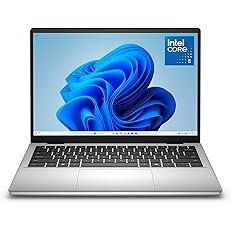
Dell 14 Plus (DB14250) Review
Best Products, Gadgets & Reviews, Laptops & PCs, Reviews

Dell 14 Plus (DB14250) Review: Is It Worth Your Money in 2026?

The Dell 14 Plus (DB14250) has emerged as one of the most talked-about laptops in the mid-range segment. Designed for professionals, students, and casual users, this device promises a balance of performance, portability, and style. In this detailed review, we will examine every aspect of this laptop, from design to performance, to help you decide if it’s the right choice. Design and Build Quality The first thing you notice about the Dell 14 Plus (DB14250) is its sleek and minimalist design. The aluminum chassis gives it a premium feel while maintaining lightweight portability. Weighing just under 3.5 pounds, this laptop is perfect for students or professionals who travel frequently. The hinge mechanism feels sturdy, allowing the display to stay firm at any angle. Dell has also opted for a clean layout with narrow bezels, making the screen feel larger than its 14-inch size. The overall build quality ensures durability without adding unnecessary bulk. Display and Visual Experience The Dell 14 Plus (DB14250) features a 14-inch Full HD display with an anti-glare coating. Colors appear vibrant, and the brightness is sufficient for indoor and outdoor usage. While it does not match the premium OLED panels found in high-end laptops, it performs admirably in both productivity and media consumption. The screen also supports wide viewing angles, which means you can watch videos or present slides to multiple people without any color distortion. For a laptop in this price segment, the Dell 14 Plus display offers a clear and crisp visual experience suitable for work, study, and entertainment. Performance and Specifications Performance is where the Dell 14 Plus (DB14250) truly shines. It comes equipped with the latest Intel Core i5 or i7 processors, ensuring smooth multitasking and fast app execution. Coupled with 8GB or 16GB of RAM, the laptop handles multiple browser tabs, office applications, and light photo editing without lag. Storage options include fast SSD drives ranging from 256GB to 1TB. Boot times are impressively quick, and software launches almost instantly. For users seeking a reliable laptop for daily tasks, the Dell 14 Plus (DB14250) delivers a responsive and efficient performance. Graphics and Gaming Performance While the Dell 14 Plus (DB14250) is not primarily marketed as a gaming laptop, it performs reasonably well with casual gaming and creative work. Integrated Intel Iris Xe graphics handle tasks like video playback, photo editing, and streaming with ease. For users interested in light gaming or graphic design, the laptop manages older titles and less-demanding games smoothly. However, for AAA gaming or professional 3D rendering, you may want to consider a device with dedicated graphics. The Dell 14 Plus offers a balanced solution for everyday multimedia needs. Keyboard and Trackpad Experience Typing on the Dell 14 Plus (DB14250) is comfortable and responsive. The keyboard provides good key travel, and the layout feels natural for long typing sessions. Dell has included a backlit option, which is particularly useful for working in low-light environments. The trackpad is spacious and precise, supporting multi-touch gestures effortlessly. Scrolling, zooming, and swiping feel smooth, and the overall input experience is satisfying for both casual users and professionals. Connectivity and Ports Dell has not compromised on connectivity options for the 14 Plus (DB14250). It comes with multiple USB-A and USB-C ports, an HDMI port, and a headphone jack. There’s also a microSD card reader for expanding storage or transferring files from cameras and other devices. Wi-Fi 6 support ensures faster and more reliable wireless connections, while Bluetooth 5.2 allows seamless pairing with peripherals. The laptop’s connectivity options make it versatile for both work-from-home setups and travel needs. Audio and Multimedia Audio quality on the Dell 14 Plus (DB14250) is impressive for its size. The stereo speakers deliver clear vocals and decent bass, making it suitable for video calls, streaming music, or watching movies. While it may not replace dedicated external speakers, it performs adequately for personal and professional use. The laptop also supports high-definition video playback without stutter. Combined with the 14-inch Full HD display, the Dell 14 Plus offers a complete multimedia experience for entertainment and productivity. Battery Life and Portability One of the standout features of the Dell 14 Plus (DB14250) is its battery life. The laptop can last up to 9-10 hours on a single charge under normal usage, which is ideal for students, remote workers, or travelers. Charging is relatively fast, allowing you to top up the battery in just over an hour. Coupled with its lightweight design and compact dimensions, this laptop is a reliable companion for long commutes, coffee shop work, or travel adventures. Software and User Experience The Dell 14 Plus (DB14250) ships with Windows 11 Home, providing a smooth and modern user interface. It comes preloaded with essential apps and utilities to optimize performance, but users can easily customize the system according to their needs. Dell’s support software, including firmware updates and troubleshooting tools, ensures the laptop remains stable and secure. For beginners and experienced users alike, the Dell 14 Plus offers a seamless and user-friendly experience. Pros and Cons While reviewing the Dell 14 Plus (DB14250), several strengths and limitations become evident. Its design, portability, display, and battery life are significant advantages. The performance is sufficient for most users, and the connectivity options are versatile. However, it lacks a dedicated GPU, which limits its suitability for heavy gaming or professional video editing. The speakers, while good, are not top-tier, and higher RAM configurations can be expensive. Overall, the pros outweigh the cons for most users seeking a balanced and capable laptop. Final Verdict: Is the Dell 14 Plus (DB14250) Worth Buying? After testing the Dell 14 Plus (DB14250) extensively, it is clear that this laptop is a reliable choice for mid-range buyers. It excels in portability, battery life, and general performance while offering a solid multimedia experience. For students, professionals, and casual users, the Dell 14 Plus (DB14250) provides excellent value for money. If you prioritize a lightweight, durable laptop with solid performance and a good display, this laptop is worth considering in […]

Dell 14 Plus (DB14250) Review: Is It Worth Your Money in 2026? Read Post »

Scroll to Top