
How-To Guides

Microsoft PC Manager
How-To, How-To Guides, Laptops & PCs

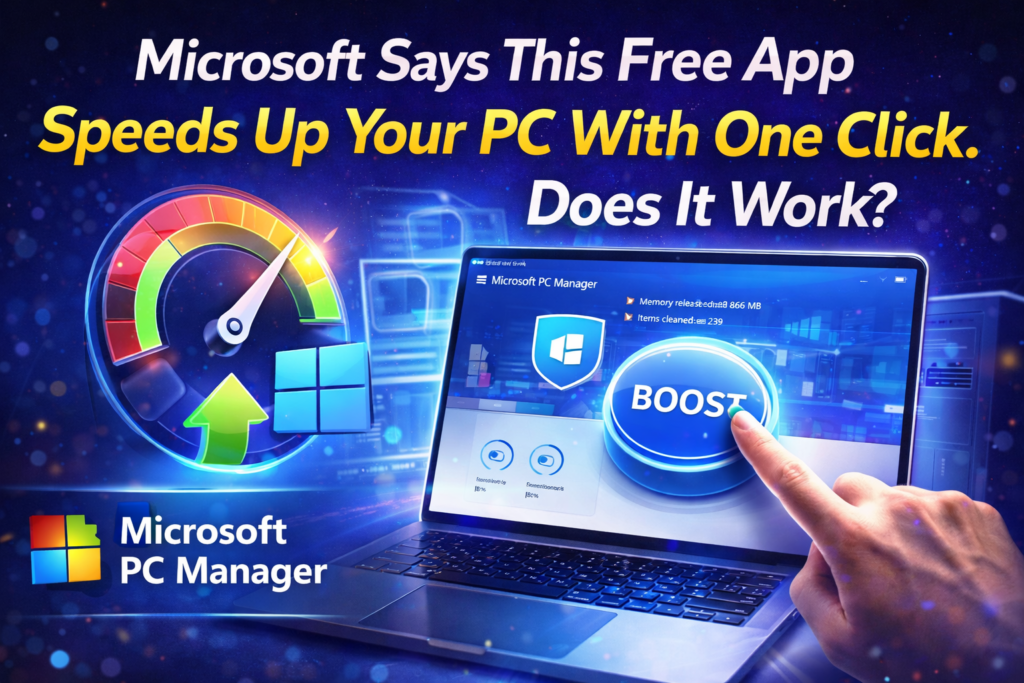
Microsoft PC Manager : Does This Free App Really Speed Up Your PC?

Introduction to Microsoft PC Manager Microsoft PC Manager has become popular among Windows users looking for a simple way to improve system performance. Many third-party tools promise faster computers, but most require paid subscriptions or show aggressive ads. Microsoft has now introduced its own free optimization app that claims to clean and boost PCs with one click. The big question is whether this tool actually delivers real results or is just another system cleaner with big marketing promises. What Is Microsoft PC Manager? Microsoft PC Manager is an official Windows utility designed to combine several built-in maintenance features into one interface. Instead of searching through multiple settings menus, users can manage storage, startup apps, and background processes from a single dashboard. The app works on both Windows 10 and Windows 11 devices without requiring advanced technical knowledge. This makes it attractive for beginners who want an easy method to maintain their computers. Installation and First Impressions Downloading Microsoft PC Manager from the Microsoft Store takes only a few seconds on a stable internet connection. After launching the app, a clean and simple welcome screen appears with options to enable automatic startup. The interface uses large buttons and clear labels that explain each function in plain language. Even users with little experience in PC maintenance can understand the layout without reading tutorials. One-Click Boost Feature The main attraction inside Microsoft PC Manager is the large Boost button placed at the top of the home screen. Pressing this button closes unnecessary background processes and removes temporary files from memory. This action is meant to free RAM and make the system feel more responsive during daily tasks. On older computers, the effect can be more noticeable than on high-end modern machines. Health Check System Another important section is the Health Check tool that scans the computer for common performance problems. It searches for leftover files, unused applications, and system settings that may slow down the PC. After the scan finishes, users receive a list of items that can be optimized with one click. The report is easy to read and explains each suggestion clearly. Storage Cleaning Options Microsoft PC Manager includes advanced storage management similar to Windows Storage Sense but with more control. Users can delete cache files, DirectX shaders, log data, and recycle bin contents from one page. The tool also identifies large files that may be forgotten in download folders. This helps free valuable disk space without manually browsing through drives. Startup and Process Control Too many startup applications are one of the biggest reasons for slow boot times. Microsoft PC Manager allows users to disable unwanted startup programs with simple toggle switches. It also shows running processes with an option to end tasks quickly. This feature works like Task Manager but in a friendlier design. Deep Cleanup Function The Deep Cleanup module goes further than basic cleaning by scanning application caches and residual data. Programs like browsers and chat tools often store hundreds of megabytes of temporary files. Removing these leftovers can recover several gigabytes of storage space. The process is safe because the app targets only non-essential data. Toolbox and Mini Toolbar Microsoft PC Manager offers a small floating toolbar that displays CPU and network usage in real time. Users can add shortcuts to calculator, notepad, captions, and other system utilities. This helps access useful tools without opening multiple windows. The toolbar can be hidden anytime if it feels distracting. Security and Privacy Considerations Some users worry about giving system access to optimization software. Microsoft PC Manager runs locally and does not upload personal files to cloud servers. The app follows the same privacy standards as Windows itself. It only uses official Windows APIs to perform cleaning and maintenance. Performance Test Results Real-world tests show that Microsoft PC Manager can slightly improve benchmark scores on mid-range PCs. Memory usage usually drops after pressing the Boost button. Systems with limited RAM benefit more than powerful gaming computers. The improvement is not magical but still helpful for everyday multitasking. Comparison With Third-Party Tools Unlike CCleaner or Iolo System Mechanic, Microsoft PC Manager is completely free and ad-free. It avoids risky registry cleaning that can damage Windows installations. Paid tools often include unnecessary features that average users never touch. The Microsoft solution focuses only on safe and practical optimizations. Who Should Use This App? Microsoft PC Manager is ideal for students, office workers, and home users who want simple maintenance. Gamers with high-end rigs may notice only small gains from the tool. Older laptops with 8GB RAM or less can feel noticeably faster after cleaning. The app suits people who dislike complex technical settings. Limitations to Consider The tool does not replace professional troubleshooting for hardware problems. It cannot fix failing hard drives or outdated drivers automatically. Advanced users may prefer the detailed control of Task Manager and Windows settings. The app is mainly designed for quick everyday optimization. Final Verdict on Microsoft PC Manager After thorough testing, Microsoft PC Manager proves to be a reliable and safe maintenance utility. It successfully organizes scattered Windows features into one convenient location. The performance boost is modest but real, especially on cluttered systems. For a free official app, it delivers more value than expected. Conclusion The focus keyword Microsoft PC Manager represents a new direction for Windows maintenance tools. Instead of relying on questionable third-party cleaners, users now have a trusted built-in alternative. The app will not transform an old PC into a gaming monster, but it can restore smooth everyday performance. Anyone using Windows should try this free tool before spending money on paid optimizers.

Microsoft PC Manager : Does This Free App Really Speed Up Your PC? Read Post »

Pomodoro Technique Apps
How-To, How-To Guides, Internet & Apps

Want to Reach Flow State Faster? These Apps Amplify the Pomodoro Technique Apps

How Pomodoro Technique Apps Help You Enter Flow State The Pomodoro technique apps are designed to break work into focused intervals that guide the brain toward deep concentration. Many people struggle to reach flow state because distractions interrupt mental rhythm before it fully forms. By using structured timers, users can train their attention to stay locked on a single task. This method reduces decision fatigue and creates a predictable pattern for the mind to follow. Flow state apps combine science and simplicity to improve daily productivity. Instead of relying only on willpower, these tools create an environment where focus becomes automatic. The best pomodoro apps for deep work include sound cues, analytics, and goal tracking features. Such elements gently push the brain into a productive mode without feeling forced. Why Reaching Flow State Feels Difficult Modern digital life constantly fights against concentration and calm thinking. Notifications, emails, and social media fragment attention into tiny pieces throughout the day. Even when a person wants to focus, the brain remains in alert mode searching for the next stimulus. This is why many people search for how to reach flow state faster apps online. The Pomodoro technique offers a practical solution to this problem. Instead of demanding hours of discipline, it asks only for twenty-five minutes of commitment. Short sessions feel manageable and reduce mental resistance to starting work. Over time the brain learns that focus is safe and even enjoyable. Short-Tail and Long-Tail Keywords in Productivity Common short-tail keywords include pomodoro technique, productivity apps, focus timer, and flow state. Long-tail keywords such as best apps to reach flow state faster and pomodoro apps for students describe specific user intent. These phrases reflect what people type when they need real solutions. Using them naturally in content helps readers find helpful guidance. Search behavior shows that users want tools rather than theories. They look for apps that amplify the pomodoro technique and make deep work easier. Articles built around these terms answer practical questions. This approach connects technology with everyday human challenges. Features That Make Pomodoro Apps Powerful Not every timer qualifies as a true focus tool. Effective pomodoro technique apps include task lists, progress charts, and gentle reminders. Some provide ambient music to block background noise and keep attention steady. Others integrate with calendars to plan sessions around real deadlines. Customization also matters for long-term use. Users should be able to adjust session length and break duration. Flexibility allows the method to fit different personalities and professions. When an app adapts to the user, flow state becomes more accessible. Digital Psychology Behind the Method The brain loves clear beginnings and endings. A ticking timer signals that one small mission has started. During those minutes the mind stops worrying about the entire workload ahead. This psychological boundary is why pomodoro apps for deep work feel comforting. Breaks play an equally important role in the system. Short rests prevent mental exhaustion and refresh creativity. Instead of pushing until burnout, the user cycles between effort and recovery. This rhythm mirrors natural human energy patterns. Popular Apps That Amplify the Pomodoro Technique Many modern applications translate the classic method into engaging digital experiences. Some focus on minimal design with only a timer and a bell. Others transform productivity into a game with rewards and virtual trees. Each style appeals to different types of workers. Students often prefer apps with statistics and study streaks. Professionals usually choose tools that sync across devices and teams. Freelancers look for simple interfaces that start instantly. All these options aim at the same goal of faster flow state entry. Building a Daily Focus Ritual Technology works best when paired with routine. Opening a pomodoro technique app at the same hour trains the brain to expect concentration. After several days the mind begins to switch modes automatically. This habit is stronger than motivation alone. A good ritual includes preparing tasks before the timer starts. Writing three priorities prevents confusion during the session. Clearing the desk and closing extra tabs also reduces friction. Small preparations multiply the power of the method. Mistakes That Block Flow State Many beginners misuse focus timers by multitasking within sessions. Switching between emails and writing breaks the neurological pattern the method tries to build. Another mistake is skipping breaks to finish faster. This usually backfires with tiredness and slower thinking. Choosing unrealistic goals also harms the process. Expecting to complete huge projects in one pomodoro creates stress. The technique works when tasks are divided into tiny steps. Progress should feel light rather than heavy. Who Benefits Most From These Apps Remote workers rely on pomodoro apps to separate home life from job duties. Creators use them to overcome procrastination and creative blocks. Programmers and writers appreciate the silent structure around complex thinking. Even teenagers use these tools for exam preparation. Anyone who battles distraction can gain from this approach. The method does not require special skills or expensive equipment. A simple smartphone becomes a personal focus coach. Consistency matters more than talent. Combining Pomodoro With Other Methods Flow state apps can be paired with time blocking or goal setting systems. Some users connect them with habit trackers to measure weekly progress. Others add breathing exercises during breaks to calm the nervous system. These combinations deepen the effect. The technique also fits well with minimalist productivity philosophies. By limiting work to short sessions, people learn to value quality over quantity. The day becomes a series of meaningful moments. Stress gradually loses its power. Future of Focus Technology Developers are adding artificial intelligence to pomodoro technique apps. Smart systems analyze when the user loses attention and suggest breaks. Voice assistants can start sessions without touching the phone. Wearable devices may soon detect real flow state signals. Despite new features, the core idea remains simple and human. Concentration grows through gentle repetition and respect for mental limits. Technology only amplifies what the brain already needs. The future will likely make focus more personalized. Final Thoughts on Reaching Flow State Faster Learning […]

Want to Reach Flow State Faster? These Apps Amplify the Pomodoro Technique Apps Read Post »

How to Save on Streaming Services
How-To, How-To Guides, Streaming

How to Save on Streaming Services: 9 Practical Strategies

Streaming services have become a staple of modern entertainment, but monthly fees can add up quickly. Many households find themselves paying for multiple platforms without realizing how much they could save. Understanding how to save on streaming services allows users to enjoy favorite shows and movies without overspending. The following tips provide practical strategies to reduce costs while keeping access to top content. Evaluate Your Streaming Needs Start by reviewing all the streaming platforms you subscribe to. Services like Netflix, Disney+, HBO Max, Hulu, and Apple TV often overlap in content. Decide which platforms are essential and which ones you can pause or cancel. Careful evaluation helps prevent unnecessary spending and ensures you only pay for content you regularly watch. Identify Less-Used Subscriptions Many households maintain subscriptions they rarely use. Tracking monthly usage can reveal which services provide little value. By pausing or canceling infrequently used subscriptions, you save money without missing out on favorite shows. Even small reductions in monthly fees accumulate over time, significantly lowering your overall streaming budget. Ditch Live TV Streaming Services Live TV streaming is typically the priciest part of a streaming plan. Platforms like Hulu Live TV and Peacock Premium charge high fees for real-time content. If waiting a day or two to catch up on shows is acceptable, removing live TV from your plan can save substantial money. Free options like Pluto TV or The Roku Channel provide many live channels without high costs. Free Live Streaming Alternatives Pluto TV and The Roku Channel offer hundreds of free live channels and on-demand content. These platforms allow users to enjoy news, sports, and entertainment without subscribing to expensive live streaming tiers. Utilizing free streaming options is one of the most effective ways to reduce costs while keeping diverse content accessible. Downgrade to a Lower Tier Many streaming platforms offer multiple subscription tiers with varying features. Premium plans provide benefits like ad-free viewing, higher resolution, and multiple simultaneous streams. If these features are unnecessary for your viewing habits, downgrading to a lower tier can save money. For example, Hulu with ads costs $9.99 a month compared to $18.99 for the ad-free plan. Annual vs. Monthly Plans Some streaming services offer annual subscriptions that provide savings over paying month-to-month. Platforms such as Hulu, Disney+, and HBO Max often have annual plans with discounted rates. Opting for an annual subscription ensures consistent access and reduces monthly financial strain. Take Advantage of Free Trials Many streaming platforms offer free trials for new customers, typically ranging from seven to thirty days. Platforms like Hulu and Amazon Prime Video provide extended trial periods, which allow viewers to watch content without immediate payment. Signing up for a free trial to catch a season of a show, then canceling, is a legitimate strategy to enjoy content at no cost. Limitations of Free Trials Not all services offer free trials, and some trials may be limited to first-time users. Disney+, Netflix, and Paramount+ have reduced or eliminated trial periods. Being strategic about free trials—aligning them with show releases—can maximize entertainment while minimizing subscription fees. Pause or Rotate Subscriptions Some streaming services allow users to pause subscriptions instead of canceling them. Pausing retains your watchlist and account preferences while temporarily stopping charges. Platforms like Hulu allow pausing for up to 12 weeks, and Netflix permits holding certain plans for 30 days. This approach provides flexibility for managing costs during months with lower content consumption. Rotate Content Access Another approach is rotating subscriptions based on seasonal content. Subscribe to Disney+ for a particular movie release or to HBO Max for a new series. Once finished, pause or cancel until the next season or release. This method ensures you only pay when actively watching, reducing wasted monthly fees. Find Bundled Offers Many platforms offer bundle packages that combine multiple services at a reduced rate. For instance, Disney+, Hulu, and ESPN+ can be bundled at $19.99 per month with ads. Apple TV and Peacock also provide bundle deals. Bundles allow access to multiple platforms for less than the combined individual cost, making them ideal for users with diverse viewing habits. Check Carrier or Student Discounts Cellphone plans or student programs may offer discounted streaming subscriptions. T-Mobile and Verizon occasionally provide free or reduced-cost access to Netflix, Hulu, or Disney+ for subscribers. Students can access Hulu for as low as $1.99 a month or Amazon Prime Video for $7.49. Always explore these options before subscribing individually. Look for Deals and Cashback Retail holidays and cashback credit cards can provide additional savings. Many credit cards offer cash back on streaming service payments, and platforms may run discounts during Prime Day, Black Friday, or back-to-school promotions. Utilizing cashback rewards and deals ensures you pay less while maintaining access to streaming content. Leverage Seasonal Promotions Streaming services frequently introduce temporary discounts to attract or retain customers. Platforms like Paramount+ or Spotify often provide reduced rates for a limited time. Timing subscriptions to coincide with these promotions helps minimize costs and maximize value. Explore Free Streaming Platforms Free streaming platforms offer abundant content without monthly fees. The Roku Channel, Tubi, Pluto TV, Kanopy, and PBS Video provide a variety of shows, movies, and documentaries. These services often refresh content monthly, giving users access to new titles without paying a subscription. Combine Free and Paid Services Strategically using free streaming platforms alongside essential paid subscriptions allows viewers to access more content while controlling costs. For example, watch primary shows on Netflix or Hulu and supplement with free platforms for additional entertainment. This combination effectively reduces overall spending on streaming services. Conclusion: Smart Strategies to Save Managing streaming subscriptions does not require sacrificing entertainment quality. By evaluating needs, downgrading plans, leveraging free trials, and exploring free platforms, viewers can significantly reduce costs. Bundles, promotions, and cashback further help optimize monthly expenses. Implementing these strategies ensures you enjoy your favorite shows and movies without overspending. Take Control of Streaming Costs The key to saving on streaming services is awareness and proactive management. Understanding what […]

How to Save on Streaming Services: 9 Practical Strategies Read Post »

Scroll to Top