

Introduction to Microsoft PC Manager
Microsoft PC Manager has become popular among Windows users looking for a simple way to improve system performance. Many third-party tools promise faster computers, but most require paid subscriptions or show aggressive ads. Microsoft has now introduced its own free optimization app that claims to clean and boost PCs with one click. The big question is whether this tool actually delivers real results or is just another system cleaner with big marketing promises.
What Is Microsoft PC Manager?
Microsoft PC Manager is an official Windows utility designed to combine several built-in maintenance features into one interface. Instead of searching through multiple settings menus, users can manage storage, startup apps, and background processes from a single dashboard. The app works on both Windows 10 and Windows 11 devices without requiring advanced technical knowledge. This makes it attractive for beginners who want an easy method to maintain their computers.
Installation and First Impressions
Downloading Microsoft PC Manager from the Microsoft Store takes only a few seconds on a stable internet connection. After launching the app, a clean and simple welcome screen appears with options to enable automatic startup. The interface uses large buttons and clear labels that explain each function in plain language. Even users with little experience in PC maintenance can understand the layout without reading tutorials.
One-Click Boost Feature
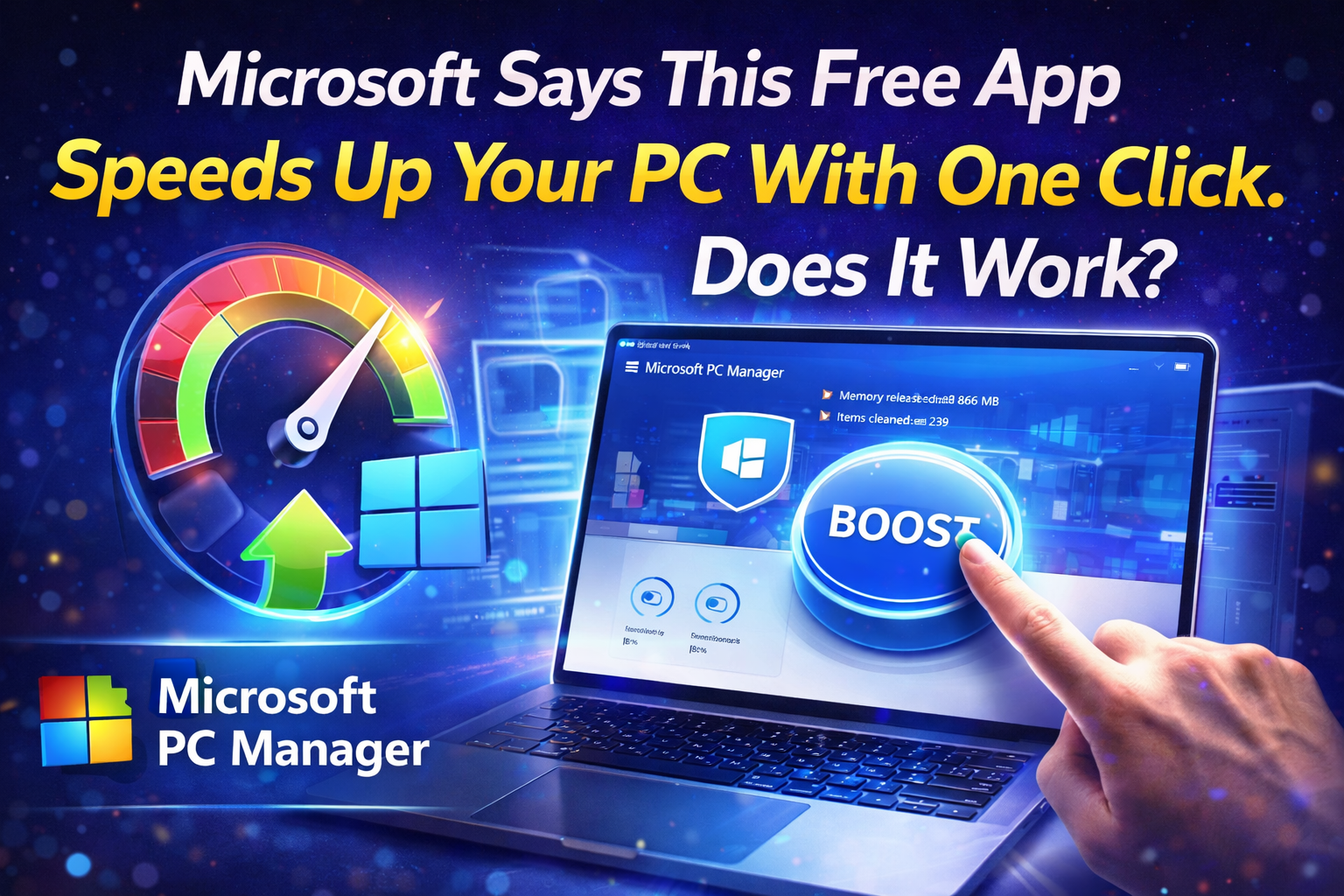
The main attraction inside Microsoft PC Manager is the large Boost button placed at the top of the home screen. Pressing this button closes unnecessary background processes and removes temporary files from memory. This action is meant to free RAM and make the system feel more responsive during daily tasks. On older computers, the effect can be more noticeable than on high-end modern machines.
Health Check System
Another important section is the Health Check tool that scans the computer for common performance problems. It searches for leftover files, unused applications, and system settings that may slow down the PC. After the scan finishes, users receive a list of items that can be optimized with one click. The report is easy to read and explains each suggestion clearly.
Storage Cleaning Options
Microsoft PC Manager includes advanced storage management similar to Windows Storage Sense but with more control. Users can delete cache files, DirectX shaders, log data, and recycle bin contents from one page. The tool also identifies large files that may be forgotten in download folders. This helps free valuable disk space without manually browsing through drives.
Startup and Process Control
Too many startup applications are one of the biggest reasons for slow boot times. Microsoft PC Manager allows users to disable unwanted startup programs with simple toggle switches. It also shows running processes with an option to end tasks quickly. This feature works like Task Manager but in a friendlier design.
Deep Cleanup Function
The Deep Cleanup module goes further than basic cleaning by scanning application caches and residual data. Programs like browsers and chat tools often store hundreds of megabytes of temporary files. Removing these leftovers can recover several gigabytes of storage space. The process is safe because the app targets only non-essential data.
Toolbox and Mini Toolbar
Microsoft PC Manager offers a small floating toolbar that displays CPU and network usage in real time. Users can add shortcuts to calculator, notepad, captions, and other system utilities. This helps access useful tools without opening multiple windows. The toolbar can be hidden anytime if it feels distracting.
Security and Privacy Considerations
Some users worry about giving system access to optimization software. Microsoft PC Manager runs locally and does not upload personal files to cloud servers. The app follows the same privacy standards as Windows itself. It only uses official Windows APIs to perform cleaning and maintenance.
Performance Test Results
Real-world tests show that Microsoft PC Manager can slightly improve benchmark scores on mid-range PCs. Memory usage usually drops after pressing the Boost button. Systems with limited RAM benefit more than powerful gaming computers. The improvement is not magical but still helpful for everyday multitasking.
Comparison With Third-Party Tools
Unlike CCleaner or Iolo System Mechanic, Microsoft PC Manager is completely free and ad-free. It avoids risky registry cleaning that can damage Windows installations. Paid tools often include unnecessary features that average users never touch. The Microsoft solution focuses only on safe and practical optimizations.
Who Should Use This App?
Microsoft PC Manager is ideal for students, office workers, and home users who want simple maintenance. Gamers with high-end rigs may notice only small gains from the tool. Older laptops with 8GB RAM or less can feel noticeably faster after cleaning. The app suits people who dislike complex technical settings.
Limitations to Consider
The tool does not replace professional troubleshooting for hardware problems. It cannot fix failing hard drives or outdated drivers automatically. Advanced users may prefer the detailed control of Task Manager and Windows settings. The app is mainly designed for quick everyday optimization.
Final Verdict on Microsoft PC Manager
After thorough testing, Microsoft PC Manager proves to be a reliable and safe maintenance utility. It successfully organizes scattered Windows features into one convenient location. The performance boost is modest but real, especially on cluttered systems. For a free official app, it delivers more value than expected.
Conclusion
The focus keyword Microsoft PC Manager represents a new direction for Windows maintenance tools. Instead of relying on questionable third-party cleaners, users now have a trusted built-in alternative. The app will not transform an old PC into a gaming monster, but it can restore smooth everyday performance. Anyone using Windows should try this free tool before spending money on paid optimizers.